Why your webcam setup matters
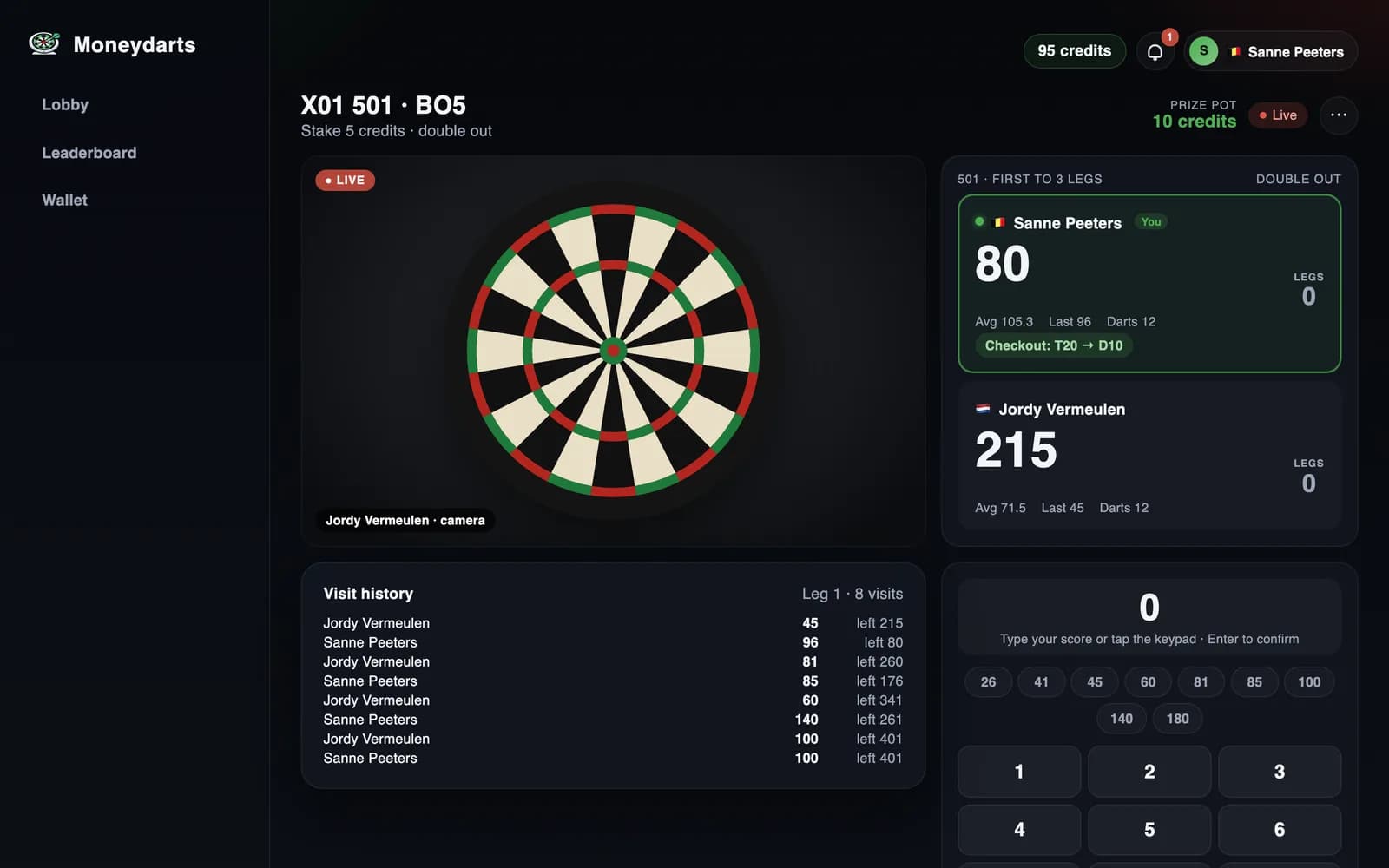
In online darts, your webcam is your opponent's eyes. They need to clearly see your dartboard, watch each dart land, and verify your scores in real time. A poor camera setup leads to blurry footage, shadows that hide dart positions, and disputes that slow down the game.
The good news is that a great webcam setup does not require expensive equipment. With the right positioning, lighting, and a few simple adjustments, even a smartphone camera can produce a crystal-clear stream. This guide covers everything you need to know to set up the perfect camera for online darts on platforms like Moneydarts.
Choosing your camera
You have three main camera options for online darts. Each has trade-offs between quality, convenience, and cost.
Option A: Smartphone
A smartphone mounted on a tripod is the most popular choice among online darts players, and for good reason. Most phones built in the last five years shoot 1080p video or better, with fast autofocus and good low-light performance. Mount your phone on a tripod and use a second device (laptop, tablet, or another phone) to view the match interface.
- Pros: Excellent image quality, you already own one, no extra software needed
- Cons: Ties up your phone during the match, may need a second device for the scoreboard
- Cost: Free (tripod: 10-20 euros)
Option B: USB webcam
A dedicated USB webcam plugs directly into your laptop or desktop, letting you run everything from a single device. The Logitech C920 and C922 are the most popular models among online darts players. They offer reliable 1080p video, solid autofocus, and built-in microphones.
- Pros: Single-device setup, reliable, plug-and-play
- Cons: Lower image quality than most modern phones, limited to USB cable length
- Cost: 50-80 euros
Option C: Tablet
An iPad or Android tablet can serve as both your camera and your match display. The larger screen makes it easy to see your opponent and the scoreboard. Position the tablet on a stand so the rear camera faces the board, and use the front display to follow the match.
- Pros: Large screen, good cameras, all-in-one device
- Cons: Heavier and harder to position precisely, may need a robust stand
- Cost: Free if you already own a tablet (stand: 15-30 euros)
For a full list of what you need beyond the camera, see our complete equipment checklist.
Optimal camera positions
Camera positioning is the single biggest factor in how good your stream looks. There are three proven positions used by online darts players. Each has advantages depending on your room layout and equipment.
Position 1: Side-on at board height (most popular)
Place your camera 1.5-2 meters to the side of the dartboard, at the same height as the bullseye (173cm from the floor). Point the camera directly at the board face. This is the standard angle used in most online darts matches.
- Pros: Shows the full board face clearly, easy for your opponent to read all segments and see where darts land, minimal distortion
- Cons: Does not show your throw, requires side space in your room
- Best for: Competitive matches where score verification is the priority
Position 2: Diagonal from the throwing side
Place your camera behind and to one side of the throwing line, angled toward the board. This captures both the board and part of your throwing action. Position it about 2-3 meters from the board at a 30-45 degree angle from the throwing line.
- Pros: Shows your throw and the board in one frame, adds transparency and social value
- Cons: Board face may appear at an angle, making some segments harder to read
- Best for: Casual matches and streaming where you want to show your throw
Position 3: Above the board, angled down
Mount the camera above the dartboard, pointing down at a slight angle. This bird's-eye style view shows the board face from above and gives a unique perspective on dart groupings.
- Pros: Compact setup, does not require floor space beside the board, good for tight rooms
- Cons: Unusual angle can make it harder to judge which segment a dart is in, may need a wall or ceiling mount
- Best for: Players with limited room space beside the board
Recommendation: Start with Position 1 (side-on at board height). It is the clearest view for your opponent and the easiest to set up with a simple tripod.
Lighting setup
Great lighting is the difference between a stream where your opponent can instantly see every dart and one where they have to squint and guess. Here is how to light your board properly.
Dartboard surround light
A dedicated dartboard surround light (also called a corona or ring light) is the single best investment you can make for your online darts setup. These circular LED strips mount around the edge of your board and illuminate the entire face evenly, eliminating shadows cast by darts already in the board. Products like the Target Corona Vision, Winmau Plasma, and various budget alternatives on Amazon range from 30-80 euros.
DIY lighting alternatives
If you do not want to buy a surround light, you can achieve decent results with household items:
- Two desk lamps — Position one on each side of the board, angled inward at 45 degrees. This reduces shadows from both directions. Use daylight-temperature bulbs (5000-6500K) for the most natural color on camera.
- Overhead light — Your ceiling light may work if it is bright enough and positioned close to the board. Shadows will fall downward, which is acceptable as long as the board numbers and segments are clearly visible.
- LED strip lights — Adhesive LED strips applied around the back of your dartboard surround or mounting bracket can create an effective DIY ring light effect at minimal cost.
Lighting mistakes to avoid
- Backlighting — Never place a bright light source behind the dartboard. This creates a silhouette effect where the board appears dark on camera.
- Direct glare into the camera — Position lights so they illuminate the board, not the camera lens. Glare causes washed-out footage and autofocus problems.
- Single-point lighting — One light from one direction creates harsh shadows on the opposite side. Use two light sources or a surround light for even coverage.
Background considerations
What is behind and around your dartboard affects camera performance more than you might expect. A cluttered or brightly colored background can confuse autofocus and auto-exposure, pulling attention away from the board.
- Use a dark, plain background — A dark wall or a dartboard cabinet creates strong contrast between the board and the background. This helps your camera's autofocus lock onto the board and makes darts easier to see.
- Dartboard surround — A black or dark-colored surround ring around the board serves double duty: it protects your wall and creates a clean visual frame on camera.
- Minimize clutter — Remove posters, shelves, or other items from the camera's field of view. The cleaner the background, the better the image quality.
Audio setup
While video is the priority, audio adds to the experience. Being able to talk to your opponent makes online darts feel more social and can help resolve any scoring questions during a match.
- Built-in microphone — Your laptop, phone, or webcam almost certainly has a built-in mic. For most players this is perfectly adequate. Test it before your first match by recording a short video clip.
- External microphone — If your built-in mic picks up a lot of background noise (fans, traffic, housemates), a clip-on lapel mic (10-20 euros) or a simple desktop USB mic (30-50 euros) provides clearer audio.
- Headphones — Using headphones or earbuds prevents echo and feedback. Your opponent hears themselves back through your speakers, which is distracting. Headphones eliminate this entirely.
Network optimization
A smooth video stream depends on a stable internet connection. Lag, freezing, and dropped connections are the most frustrating technical issues in online darts. Here is how to optimize your network:
- Use wired ethernet when possible — A direct cable connection to your router provides the most stable stream with the lowest latency. Even a long ethernet cable is worth the investment if your router is in another room.
- Switch to 5GHz WiFi — If you must use WiFi, connect to your router's 5GHz band rather than 2.4GHz. The 5GHz band has less interference and higher throughput, though it has shorter range.
- Close background applications — Streaming video, downloads, and cloud backups running on other devices can consume bandwidth. Pause them during your match.
- Test before you play — Run a speed test at speedtest.net. You need at least 3-5 Mbps upload and download. If your upload speed is borderline, lower your camera resolution from 1080p to 720p in your browser settings.
- Consider a powerline adapter — If running an ethernet cable is not practical, a powerline adapter sends your internet signal through your home's electrical wiring. They cost 30-50 euros and provide near-wired stability.
Troubleshooting common issues
Even with a good setup, you may run into occasional issues. Here are the most common problems and how to fix them:
- Camera not detected — Make sure your browser has permission to access your camera. Go to your browser's site settings and check that camera access is set to "Allow" for the platform. Try refreshing the page or restarting your browser.
- Blurry image — This is usually a lighting problem. Add more light to the board area. If using a webcam, check that autofocus is enabled and the camera is at least 1 meter from the board. Clean the camera lens with a soft cloth.
- Video freezing or lagging — Check your internet speed. Close other tabs and applications. If on WiFi, move closer to the router or switch to a wired connection. Lowering camera resolution from 1080p to 720p reduces bandwidth usage.
- Echo or feedback — Your opponent hears their own voice back through your speakers. Use headphones or earbuds to eliminate this. Alternatively, mute your speakers and use text chat.
- Dark or overexposed image — Adjust your lighting. If the board is too dark, add more light. If it is washed out, move lights further from the board or dim them. Avoid having a window or bright light in the camera frame.
- Wrong camera selected — If your device has multiple cameras (front-facing and rear), make sure the correct one is selected in your browser's camera settings. You can usually switch cameras in the platform's device check screen.
The ideal setup at a glance
Here is a summary of the recommended setup for the best online darts experience:
- Camera: Smartphone on tripod or Logitech C920/C922 webcam
- Position: Side-on, 1.5-2 meters from the board, at bullseye height (173cm)
- Lighting: Dartboard surround light or two desk lamps at 45-degree angles
- Background: Dark, plain wall with board surround
- Audio: Built-in mic with headphones to prevent echo
- Network: Wired ethernet or 5GHz WiFi, 5+ Mbps upload
For a complete list of equipment beyond the camera, check our full equipment checklist. For step-by-step installation instructions, visit our setup guide.
Frequently asked questions
What is the best camera angle for online darts?
The most popular angle is a side-on view at board height, positioned 1.5-2 meters from the board. This gives your opponent a clear view of the entire board face and shows exactly where each dart lands. Some players prefer a slight diagonal angle from the throwing side, which also captures their throw.
Can I use my phone instead of a webcam for online darts?
Yes, and many players prefer it. Modern smartphones have excellent cameras, often better than budget webcams. Mount your phone on a tripod at the correct height and angle, then use a second device (laptop or tablet) to view the scoreboard and your opponent. Your phone camera streams directly through the browser.
How do I fix blurry or dark webcam footage during darts?
Blurry footage is usually caused by poor lighting or incorrect focus. Add a dartboard surround light or desk lamp to illuminate the board evenly. For focus issues, make sure your camera is at least 1 meter from the board so autofocus can lock on properly. Clean your camera lens and check that your browser has camera permissions set to the correct device.
Do I need a microphone for online darts?
A microphone is recommended but not always required. It allows you to communicate with your opponent during the match, call out scores, and adds to the social experience. Your laptop, phone, or webcam likely has a built-in mic that works well enough. An external mic is only needed if your built-in mic picks up too much background noise.
Camera ready? Start playing.
Create your free account and compete against real darts players over webcam in minutes.